
From scan to served, in a few taps.
Two sides, both simple. Your guests order from their phone with no app; you and your staff run everything from the Hidangi app. Here is the whole flow.
What your guests do
No app, no account. Just their own phone and the QR on the table.
- 1
Scan the table QR
They point their camera at the QR code on the table. Your menu opens in the browser — nothing to install, nothing to sign up for.
- 2
Browse and build the order
They tap a dish, choose the size and add-ons, and add it. A running order bar keeps the total in view the whole time.
- 3
Send it, pay at the counter
They enter a phone number, place the order, and get an order number. They pay at the counter after they eat — Hidangi never touches the bill.
What you and your staff do
Everything runs from the free Hidangi app on your phone or tablet.
Add your menu
Create items with a price, a category and add-ons, and turn them on or off any time. Sold-out items hide from the guest menu instantly.
Make food photos with AI
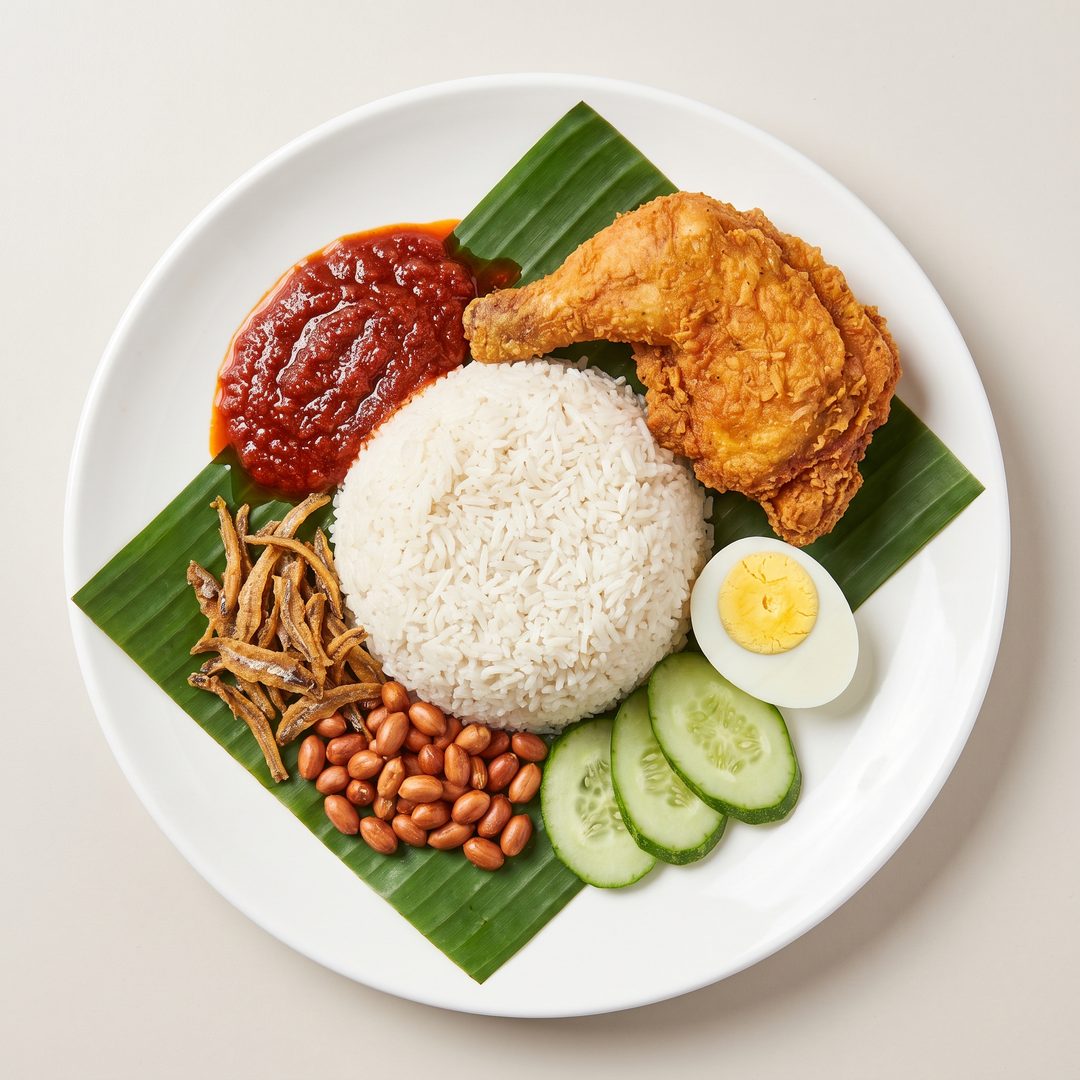
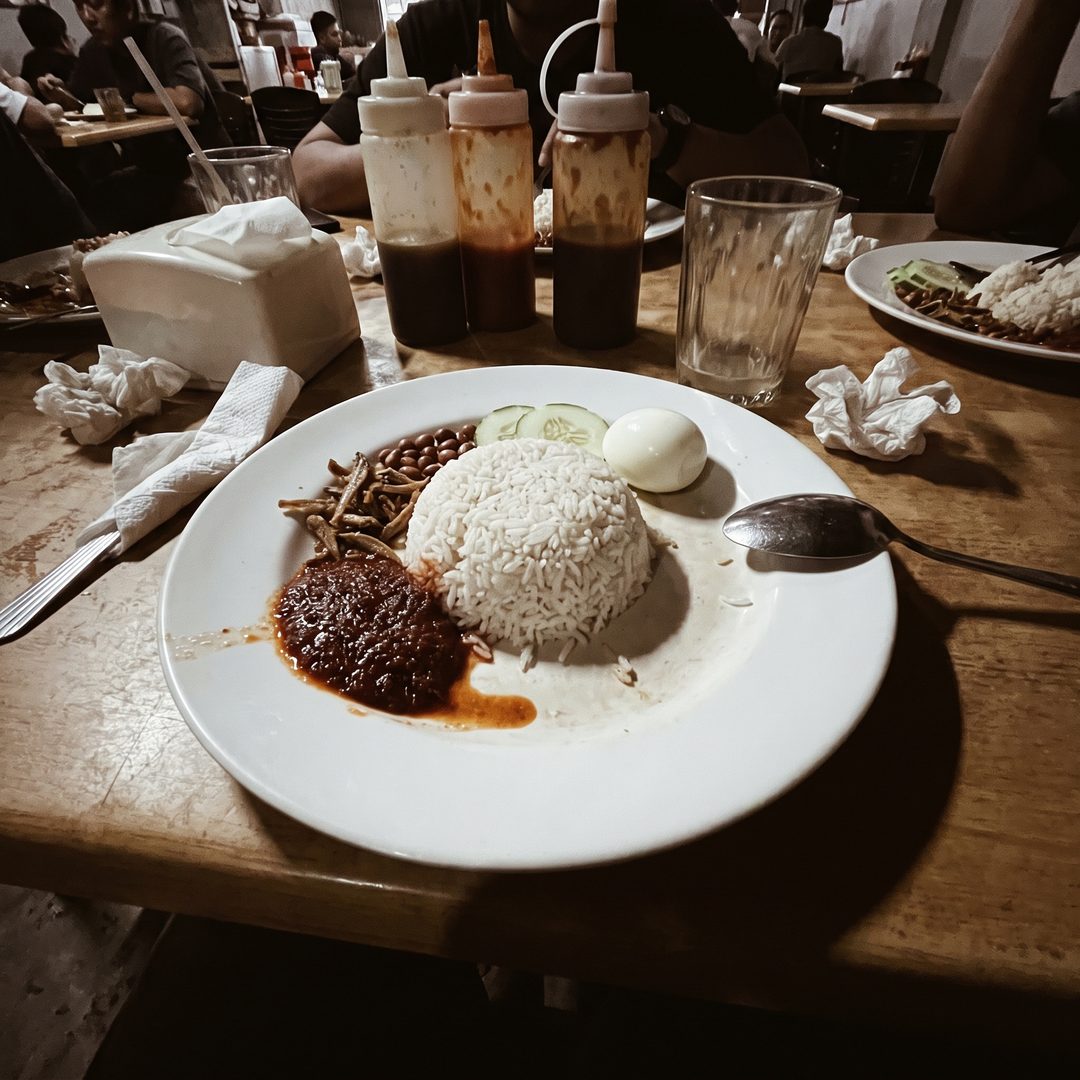
Snap a dish on your phone and let the AI studio clean it into a bright menu photo. Approve the result and it appears on the guest menu.
Print your table QR codes
Every table gets its own QR code. Print them and place them on the tables — unlimited tables on every plan, including Free.
Go On Duty and serve
Tap On Duty to start receiving orders. Each one arrives in real time with 1, 3 and 5-minute reminders. Accept, prepare, serve — guests settle at the counter.