· By The Hidangi Team
7 Mistakes Small Restaurants Make When Starting QR Ordering
Most QR ordering problems in a restaurant's first weeks aren't about the technology — they're small setup choices that seemed fine in a quiet moment and only show up as friction once real guests are ordering during a busy service. Here are the seven we see most often, and the quick fix for each.
1. Opening without placing a real test order first
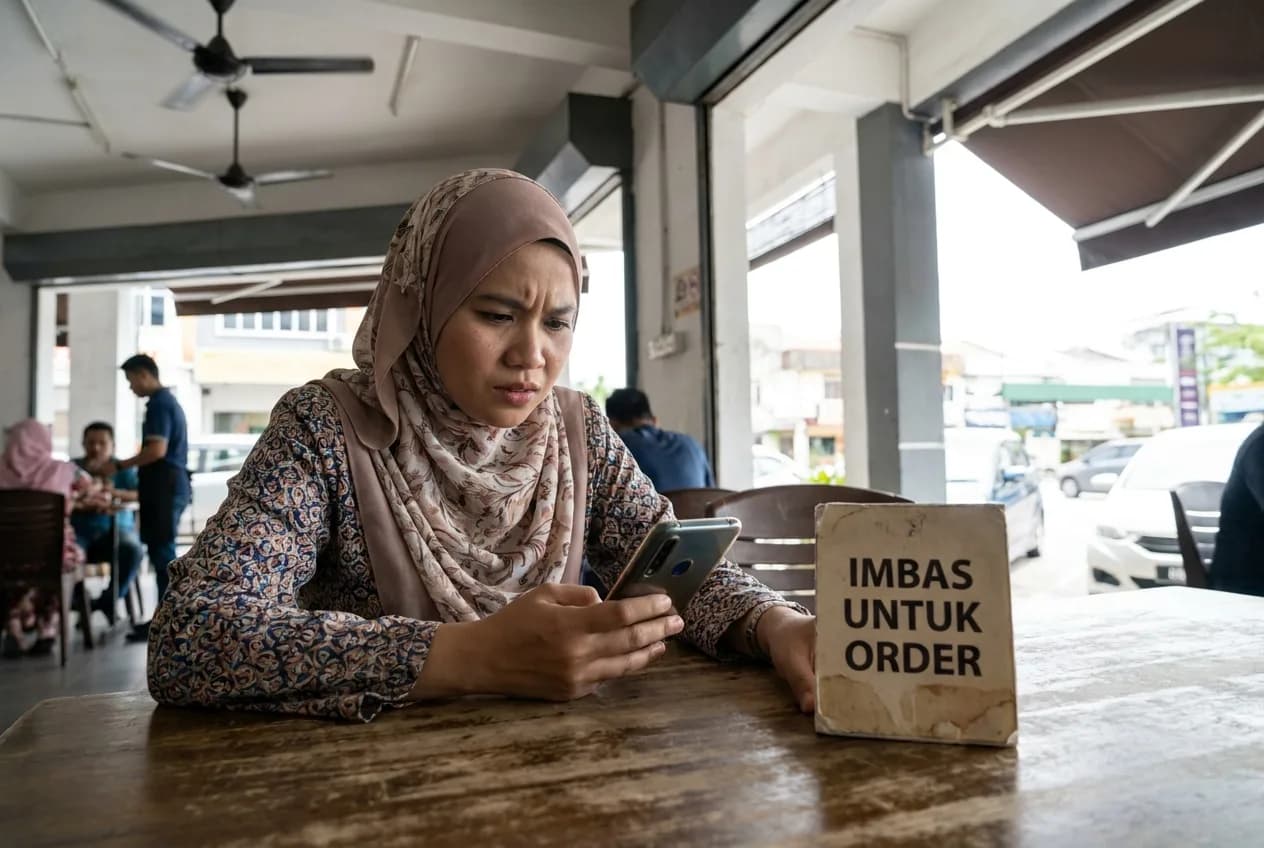
It's tempting to set up the menu, print the codes, and open — but the only way to know the guest experience actually works is to scan a table's code yourself, on your own phone, and place a real order end to end. This catches problems (a blurry photo, a missing price, a category that's easy to miss) that are invisible from the restaurant app's editing screen.
2. Printing the QR code too small or low-contrast
A code the size of a business card looks tidy on the table but forces guests to lean in or hold their phone awkwardly close. Black-on-white, roughly the size of a folded A5 sheet, scans reliably from a normal seated distance — worth checking before printing a full batch.
3. Assuming the system processes payment
This trips up more first-time operators than anything else. QR ordering only takes the order — the guest still pays at the counter after eating, exactly as before. Setting up a QR menu doesn't require a payment gateway, a merchant account, or any change to how guests actually pay.
4. Not training staff on the kitchen display before day one
Staff need to know, before the first real order lands, what Pending, Preparing, and Served mean, and what an Unattended order pinned in red is telling them. Five minutes of walking through the display with staff beforehand prevents the confused first hour that otherwise happens on a busy opening shift.
5. Reusing one QR code across multiple tables
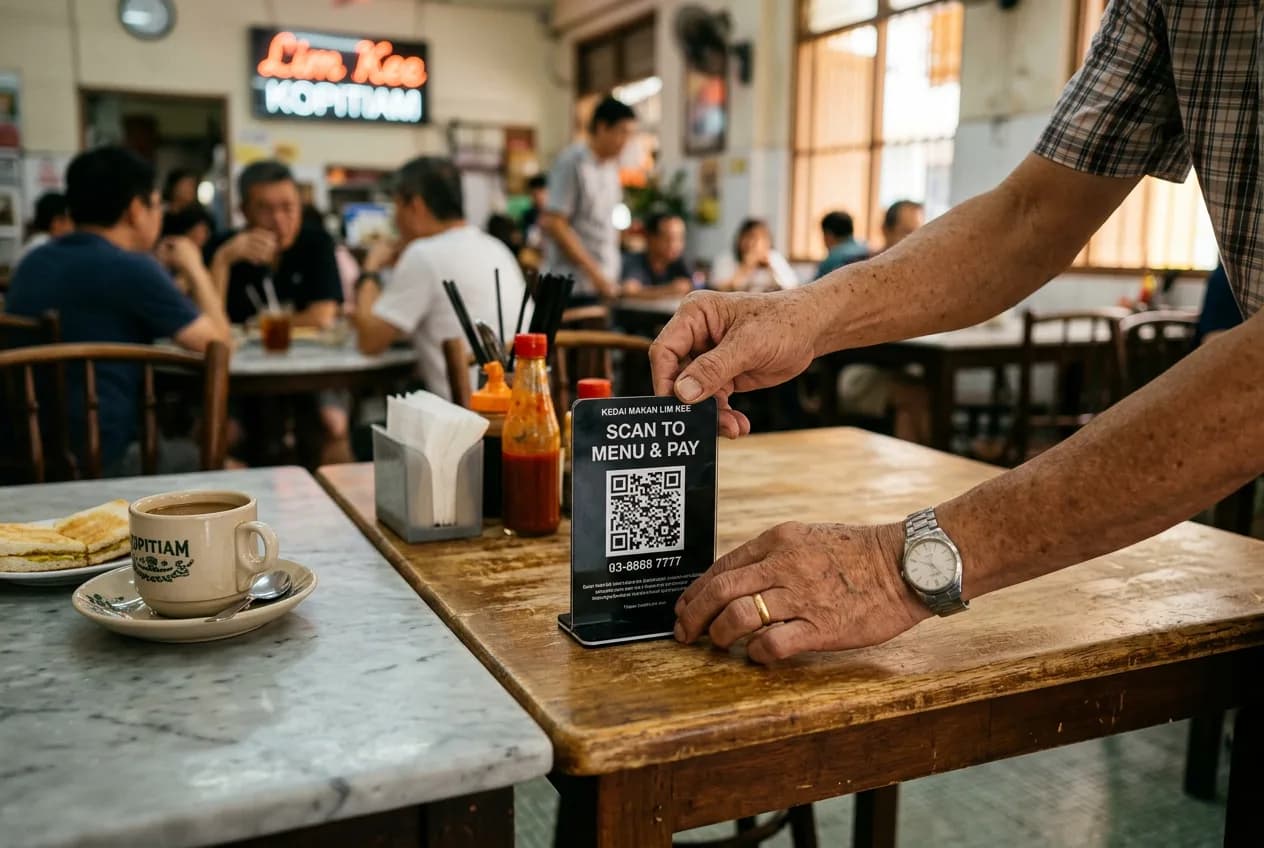
It saves a bit of printing time, but it breaks the entire point of table-specific ordering — the kitchen loses the ability to know exactly where an order came from, and two tables sharing a code can end up seeing each other's order-tracking pages. Each table needs its own code, generated individually.
6. Leaving a damaged or missing card unreplaced
A faded or torn card doesn't just look untidy — it means more failed scans, more guests flagging down staff to ask how to order, and more time lost per table. A table's code can be revoked and reissued in seconds, so there's no reason to leave a damaged card in place past the first time someone mentions it.
7. Not watching the free-plan order counter
A restaurant on the Free plan gets notified at 240 and 270 orders in the registration month, and at 300, new order submission pauses until the next reset or an upgrade. Restaurants that ignore those notices sometimes get caught mid-service with orders paused — checking in on the counter (or upgrading ahead of a known busy month) avoids that entirely.
Frequently Asked Questions
What's the single most common QR ordering mistake? Opening without placing a real test order first — most problems are invisible from the editing screen and only show up once you actually scan and order as a guest would.
Does QR ordering require setting up a payment gateway? No. QR ordering only takes the order; the guest still pays at the counter, so no payment processing setup is needed.
Can two tables share the same QR code to save printing costs? No — each table needs its own code so the kitchen knows exactly where an order came from, and so guests don't end up viewing another table's order status.
What happens when a restaurant on the Free plan reaches its order limit? Orders pause at 300 in the registration month until the next reset or an upgrade. The Owner gets notified at 240 and 270 orders so it's never a surprise.
Most of these mistakes cost nothing to avoid — they just take five minutes of testing and staff walkthrough before the first real guest scans a code. Hidangi's free plan is generous enough to run that whole test with real menu items and real orders before you ever pay.